Next Post
Declustering Overlapping Objects with a Custom Tool in Carmenta Engine
Learn how to create a custom tool in Carmenta Engine to decluster overlapping features. Step-by-step C# tutorial with code examples.
View Post
In this article, you will learn how to prepare and load S-63 (Encrypted Nautical Charts) in your Carmenta Engine application. This is a follow-up to the Nautical Charts Introduction, which covers how to work with and query nautical chart data once it’s loaded.
Electronic Navigation Charts (ENC): A digital representation of a real-world geographical area for the purpose of marine navigation. Real-world objects and areas of navigational significance are commonly portrayed through vector images.
S-57: A standard set by the International Hydrographic Organization (IHO) for ENC data.
S-63: A standard set by the International Hydrographic Organization requiring the encryption of ENC information. S-63 charts are encrypted vector marine chart data in the S-57 file format, protecting against data piracy.
Carmenta Engine supports the S-63 standard published by the International Hydrographic Organization. The S-63 protection scheme uses encryption to ensure only licensed clients can use the data. It also uses certificates and signature files so the client can validate that the data files come from a trusted source.
Important licensing consideration: S-63 nautical charts are bound to a specific Carmenta license and machine. In a scenario that requires multiple devices with S-63 charts, one new Carmenta license with S-63 user permit will be needed per device (even for a runtime license).
Since the user permit must not be shared among different clients, every Carmenta Engine license with an S-63 hardware ID, even runtime licenses, must be activated and locked to a specific client machine just like the SDK licenses.
More information is available in the documentation: Working with S-63 Electronic Nautical Chart Data
A S-63 User Permit is needed to order S-63 charts. Carmenta Engine implements the user permit by assigning an ID for each client and adding it to the regular Carmenta Engine license file. Since it must not be shared among different clients, this means that every Carmenta Engine license with an S-63 hardware ID, even runtime licenses, must be activated and locked to a specific client machine just like the SDK licenses.
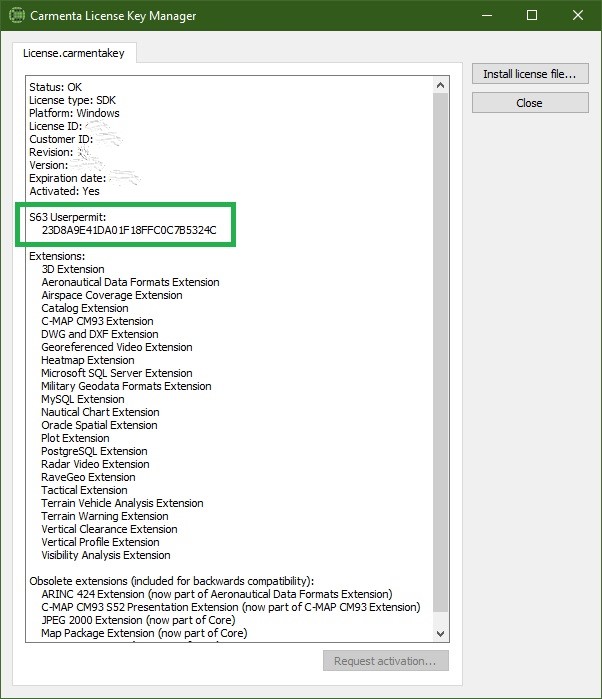
The S-63 User Permit is accessible in the license key manager. If you do not have a user permit, please contact Carmenta Support and request one:
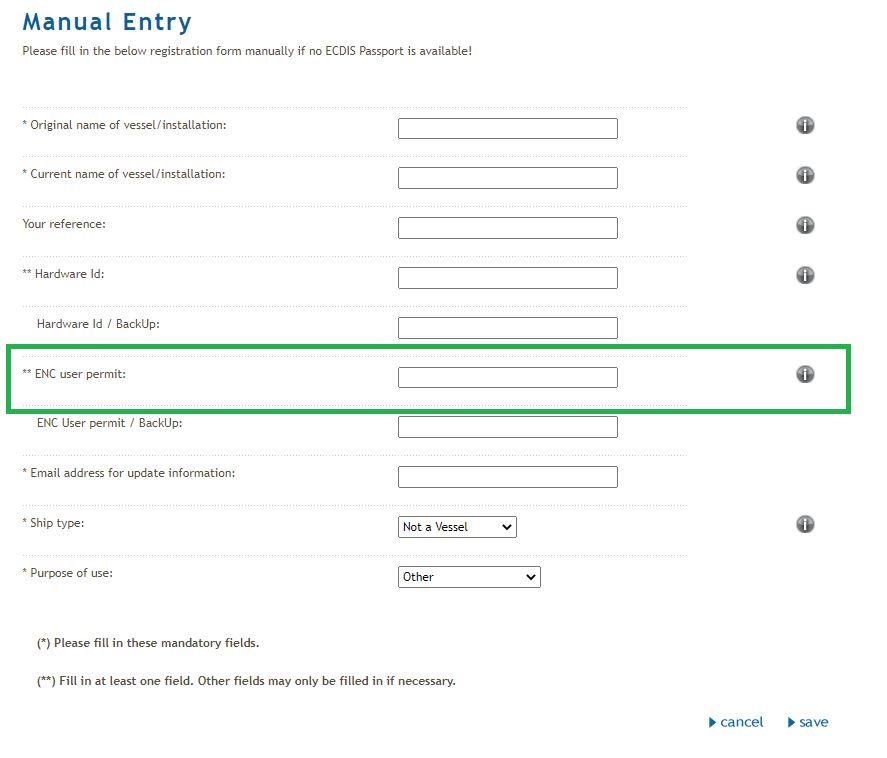
When you buy S-63 nautical charts (example shown is from ChartWorld), you will find a field to enter the user permit, for example in the form below it is called “ENC User permit”:
Reminder: Please note that Carmenta is not a nautical charts provider.
This section demonstrates how to programmatically create and manage S-63 databases in your application. This code should be executed before loading the configuration file, unless it is part of a user interface that will guide the user and modify the configuration accordingly.
First, you need to create (or open) a S-63 database using the S63 class. S63.Create() takes a path to a directory in which it will create (or find) the S-63 database.
S63 s63Db = S63.Create(directory);
If the directory already exists, all files and subdirectories in it will be deleted. Consider prompting the user for confirmation before calling this method.
Cell permits are included with the data you purchase. They are named PERMIT.TXT and contain the decryption keys needed to decrypt the data files for an S-63 ENC cell. You will need to import the permit file using S63.ImportPermitFile():
var errorLog = s63Db.ImportPermitFile(filename);
Now you will import the exchange sets. The folder must contain a file called MEDIA.TXT, in order to locate multiple exchange sets on the media, or for a single exchange set a file called SERIAL.ENC with associated subdirectories ENC_ROOT and INFO. This is done using S63.RegisterExchangeSets():
StringCollection errors = s63Db.RegisterExchangeSets(directory);
The S-63 exchange set data is not copied into the S-63 database; only the location of the data is stored. You must ensure that the exchange set remains available in the specified directory when the ENC data is read and displayed. If the data are on a DVD or similar media, they need to be copied to the hard drive.
In Carmenta Engine, S-57 and S-63 data are both read using a S57DataSet.
For S-63 data, you will need to specify the S63DatabasePath property on the S57DataSet instead of the Path property. S63DatabasePath should target the same folder used to create the S-63 database.
Both S-57 and S-63 data can be visualized using a S52Visualizer.
A basic configuration file could look like this:

Carmenta Engine documentation offers step-by-step examples using command line tools installed with Carmenta Engine SDK on how to install and manage S-63 nautical charts:
As an alternative to command line tools, you can use a graphical interface to create S-63 databases. A sample application (in C#) demonstrates this approach. While not covering all cases, it can be used to generate the S-63 database and view the charts.
Once the application is launched, click on the “Load S63” button. A new dialog will open:
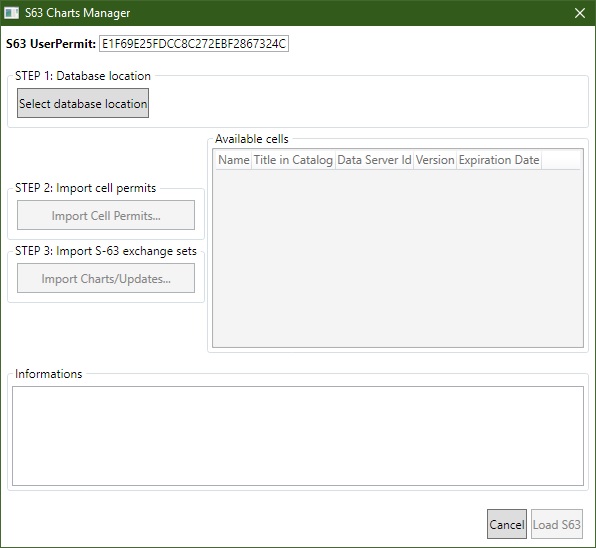
At the top, the user permit currently in use for the machine will be displayed. If there is no permit, the field will be empty and a message will be displayed in the ‘Informations’ slot. Contact Carmenta Support with the license used and request an S-63 UserPermit.
Choose where the database will be located. Click on “Select database location” to open the folder browser, and select the folder where the S-63 database will be created.
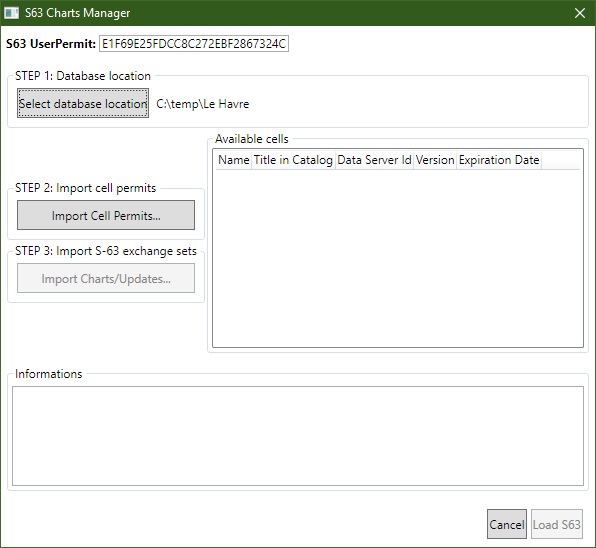
It is not possible to specify a custom database name for S-63; the database will always be named “s63.carmentadb” in the selected folder.
After selecting a database location, the permit files need to be loaded into the database. Click on “Import Cell Permit” and look for the permit files (named PERMIT.TXT).
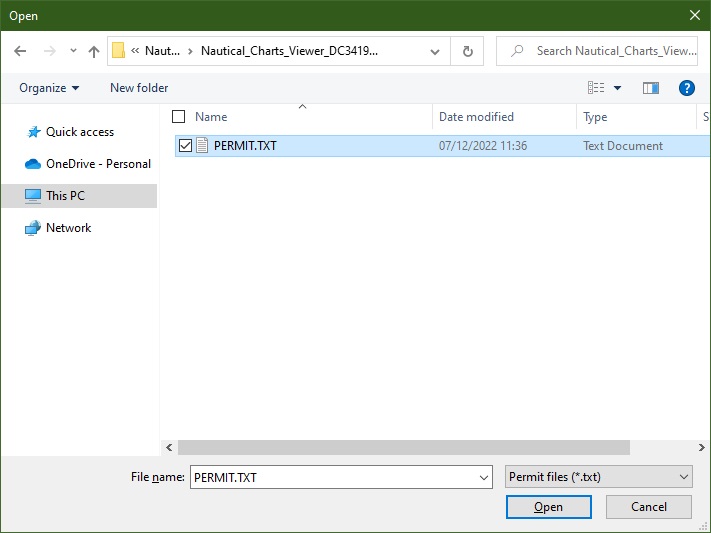
Once the permit is found, press ‘Open’ to load the file into the database. Carmenta will later link the permit to the ENC cells.
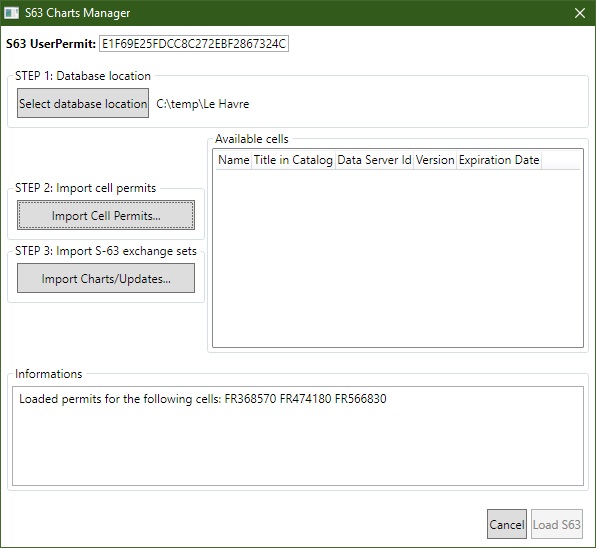
If successful, the information field should display a log that defines which cells are linked to the permits.
Now it’s time to load the data itself. Click on “Import Charts/Updates” and locate the exchange sets folder. The folder must contain a file called MEDIA.TXT (to locate multiple exchange sets on the media) or, for a single exchange set, a file called SERIAL.ENC with associated subdirectories ENC_ROOT and INFO.
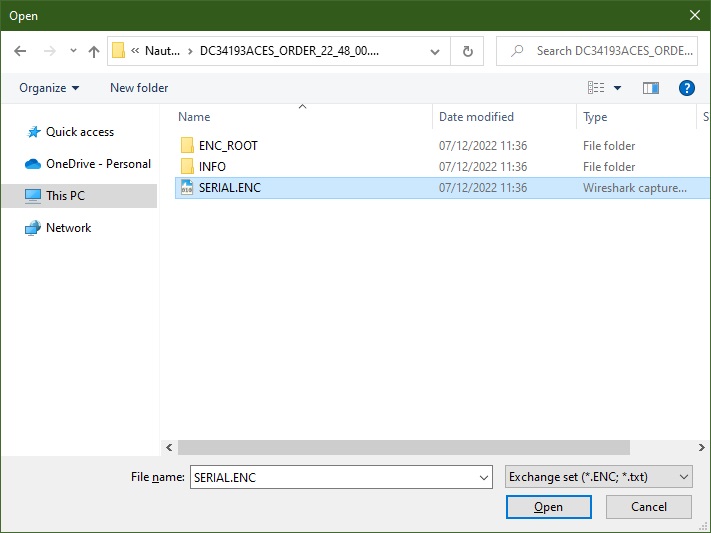
Remember: the exchange set must remain available in the specified directory when the ENC data is read and displayed because only the location of the data is stored in the database.
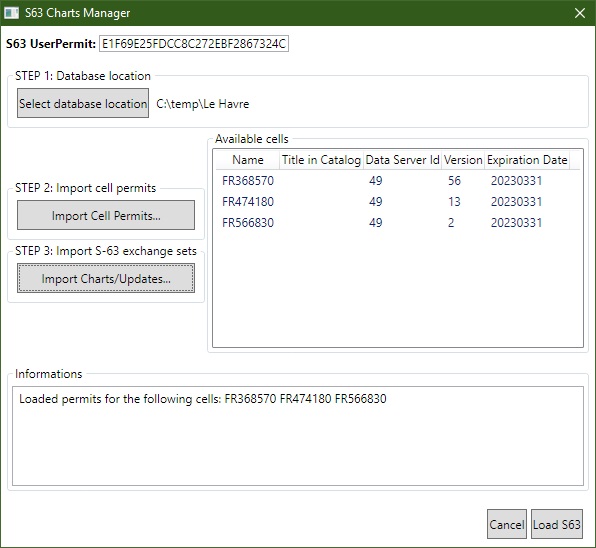
If successful, the Available cells table should display cells with some basic information.
Press the “Load S63” button to load the database in the application. It will center on the data. Since the database is created on the hard drive and all steps write to the database, the Cancel button will just close the dialog. This means it is possible to create the database without previewing it in the application.
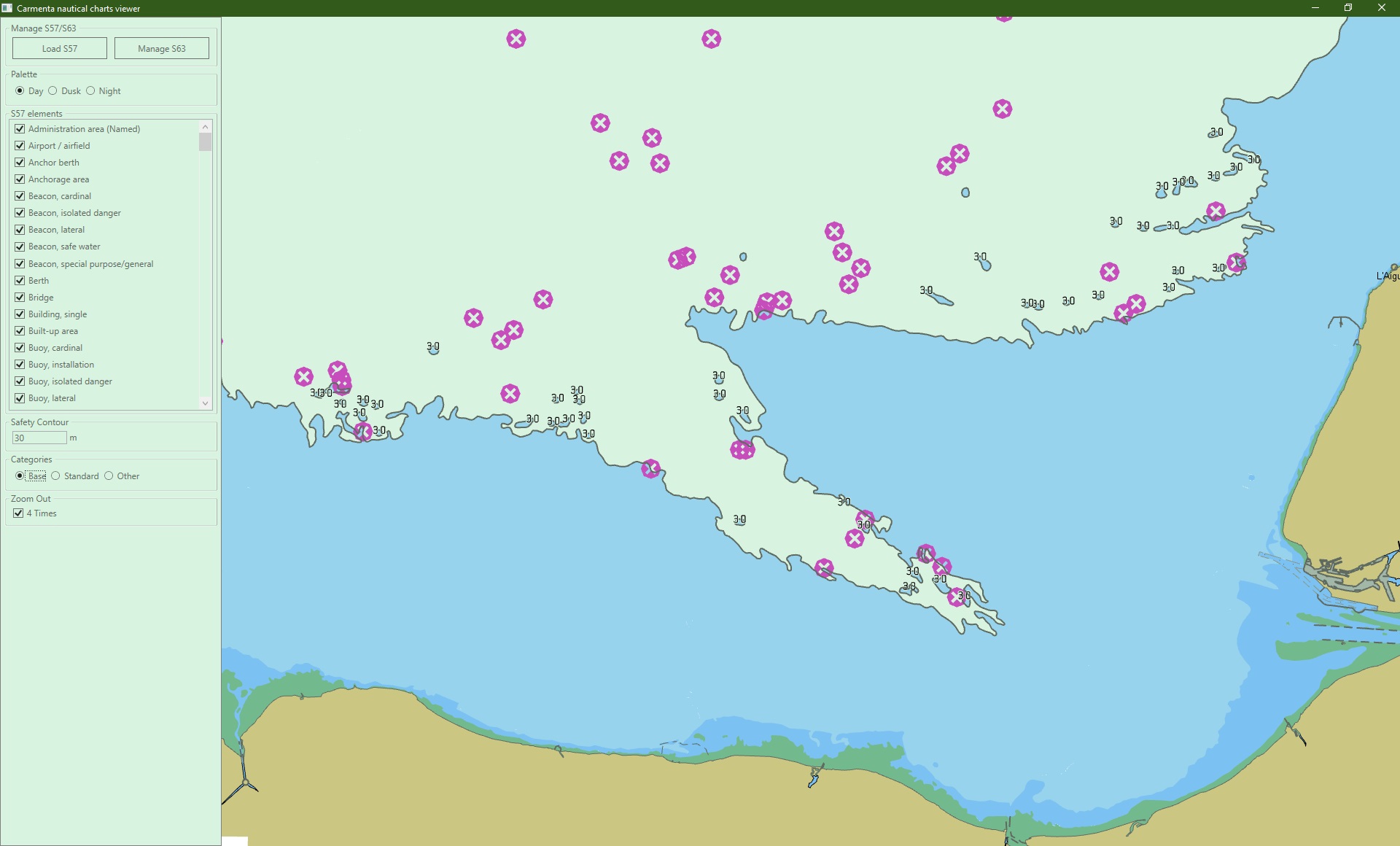
Here’s an example of a user-friendly interface for loading S-63 data:
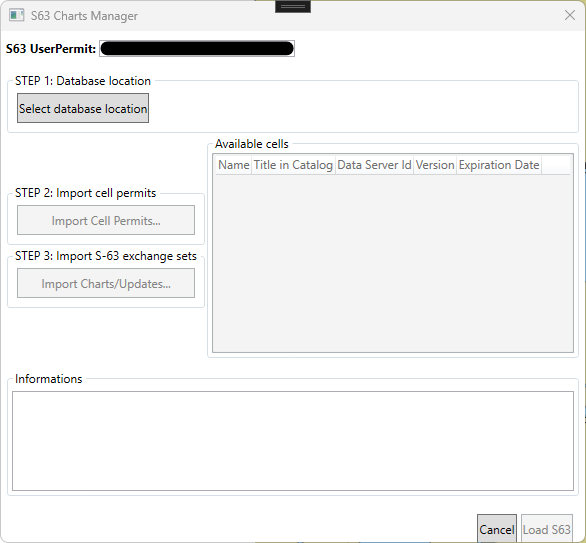
In this interface, you can see several buttons corresponding to the steps described above: creating the database, importing permits, and importing data. You can also see boxes to display the database content and one to display information messages.
Once the S-63 database is created on disk, you can load it in Carmenta Engine using an S57DataSet:
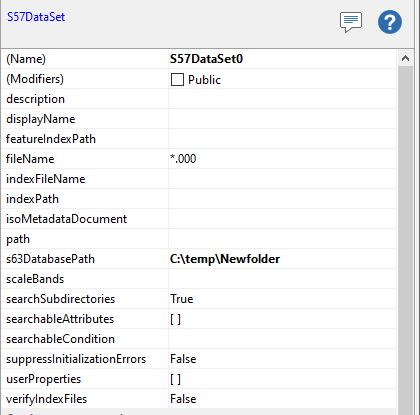
The S63DatabasePath should refer to the folder containing the file with the extension .carmentadb.
Once loaded into an S57DataSet, it is possible to perform queries and interactions as shown in the Nautical Charts Introduction article, since S-63 follows the same S-57 specification. You can:
Setting up an S-63 database requires more work and maintenance than standard S-57 nautical charts, but it guarantees that only licensed clients can use the data and that the files come from a trusted source.
The approaches shown in this article provide flexibility in how you manage S-63 data:
The nautical charts viewer provided as an example serves to demonstrate how to create and manage S-63 databases. However, some use cases are not covered, such as controlling which specific cells to load or removing existing cells. If editing or removing S-63 cells is important for your application, you will need to implement these features by following the documentation and command-line tutorials.
This article uses the same NauticalChartsDemo application from the Nautical Charts Introduction. Download: NauticalChartsDemo.zip
Learn how to create a custom tool in Carmenta Engine to decluster overlapping features. Step-by-step C# tutorial with code examples.
View Post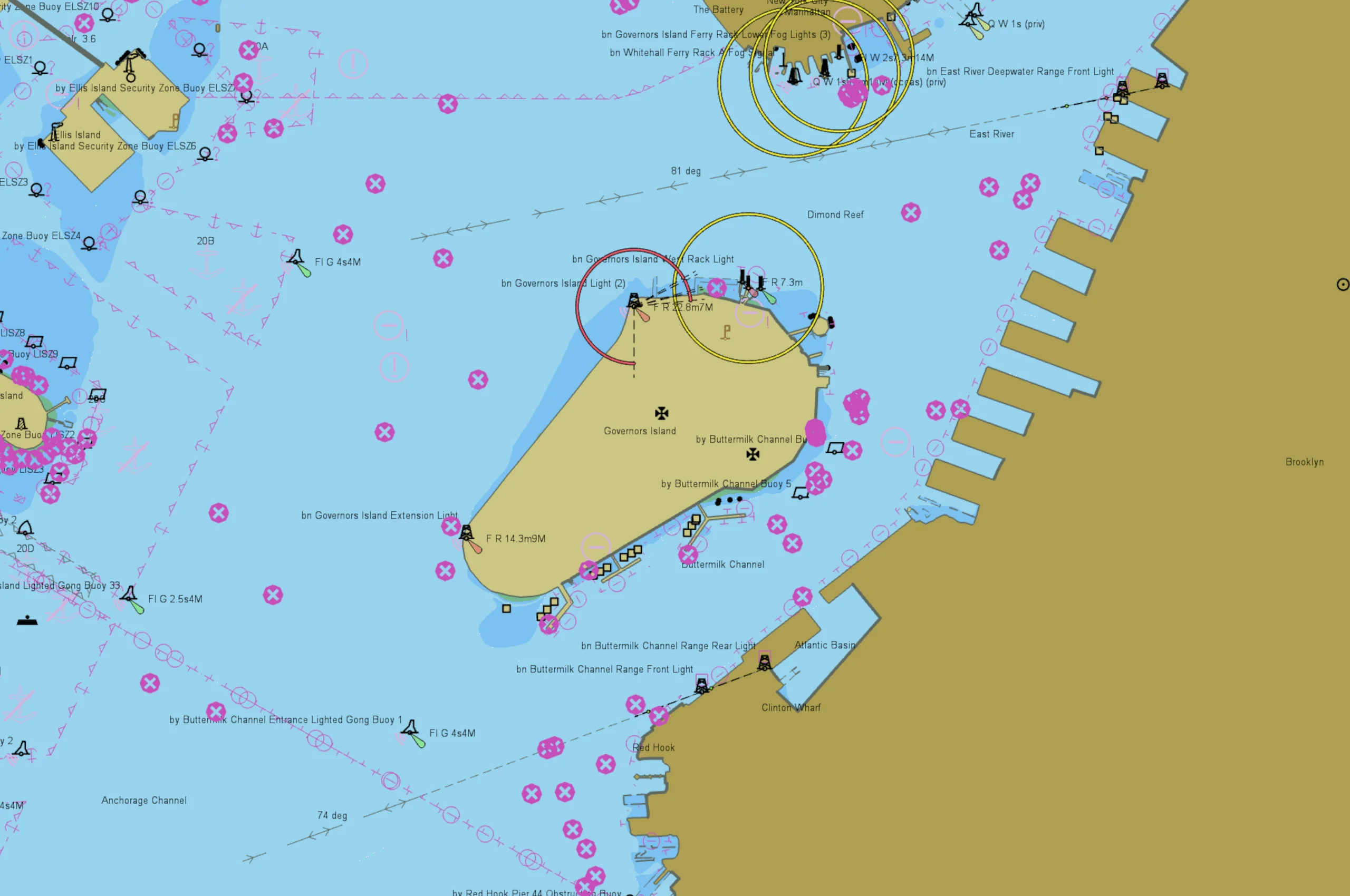
Learn how to interact with nautical charts in Carmenta Engine: query S57DataSet features, filter visualizations, and update S52Visualizer properties.
View Post