Previous Post
Visibility Analyses in Carmenta Engine: Picking the Right Operator
A practical guide to Carmenta Engine's visibility operators: viewsheds, target line of sight, observer siting, and multi-sensor coverage.
View Post
A fundamental GIS question is geocoding: how shall a position on Earth, either a point or an area, be represented as numbers or text? A basic representation is of course longitude and latitude, but there are many other geocode schemes (also known as geocode systems). Some geocode schemes are based on irregular polygons, like postal zip codes, and must be implemented via datasets. But one can do without a dataset if the geocoding scheme is regular and based on the longitude/latitude graticule or on a projected grid.
This article describes how to implement visualizations of such regular geocoding schemes in a .px configuration file, using a GridGenerator and text visualizers based on Expressions. The article does not cover the operation of parsing a geocode into a more basic representation (like longitude and latitude), but the reverse operation, formatting a geocode, is covered since the Expressions that will be used to format geocodes for grid rectangles can also be used to format the geocode for an arbitrary position.
Note that there are three geocoding schemes that have built-in support via special grid generators:
For the first two, the support includes automatic visualizations from the grid generators, and also formatting and parsing methods in the Crs class. For GEOREF, which is seldom used nowadays, you need to design your own visualizers, and there are no built-in formatting or parsing methods.
However, there are many alternative schemes where geocodes are assigned to grid rectangles, for example:
Carmenta Engine does not provide any special grid generators for these schemes. Some of them can be downloaded as a dataset of geocoded grid rectangles, which would then be the quickest way to implement them, but such a dataset would be huge for a scheme that has global coverage and allows high resolution.
Instead of a dataset we can often use the plain GridGenerator. By default it generates only line features, but it can also generate polygon features for the rectangles between the grid lines. Each such rectangular polygon feature will get attributes left and bottom with values from the grid line features along the left and bottom rectangle edges. One can then make text visualizers that generate rectangle labels by using Expressions that refer to left and bottom. Unfortunately, the Expressions can become complicated and it is easy to make off-by-one errors, so this article will provide a roadmap based on examples.
The map screenshots in this section have been generated by the following example configuration, although sometimes with alternative settings for some parameters:
It is based on the street_map.px map configuration sample. To see the alamo_square_park.px in Carmenta Explorer you need the usual Carmenta Engine Samples Geodata; then you can see that the Alamo Square Park in San Francisco is rectangular but oblique relative to north:
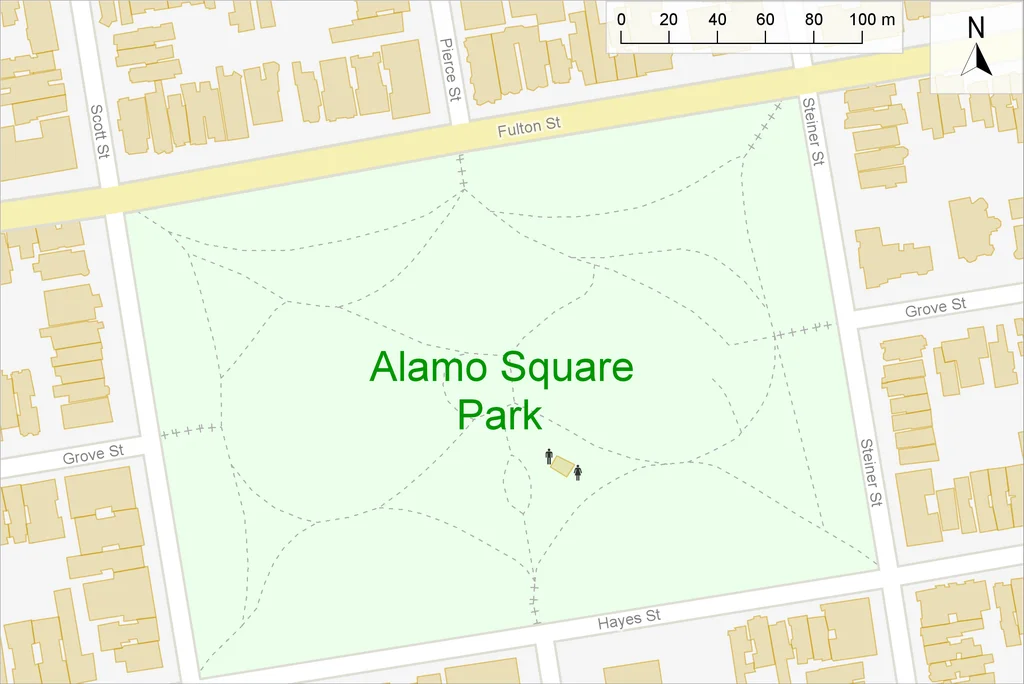
It is clearly not a square-shaped park, but the name should be parsed as ((Alamo Square) Park), the park in the Alamo Square neighborhood, not as (Alamo (Square Park)), the square park in Alamo.
Our screenshots from Carmenta Explorer show only the map window. The complete Layers panel is omitted to save space, but the grid-generating layers that are enabled for each screenshot are displayed in a small inset in the upper left. You can read this article on its own without using Carmenta Explorer or Carmenta Studio, but if you want to dive into some configuration details, you can use Carmenta Studio to examine the configuration file.
Let us say we need a convenient way to geocode the Alamo Square Park.
As a first attempt, one can simply use the MGRS geocodes that are based on UTM and have built-in support in Carmenta Engine. You can find a detailed description of UTM and MGRS here: Projected Coordinates, but you can understand the examples for the park without knowing all details.
In MGRS, seven different resolution levels are possible: 6° by 8°, 100 km, 10 km, 1 km, 100 m, 10 m or 1 m. If we use 100 m resolution, the MGRS grid for the park looks like this:
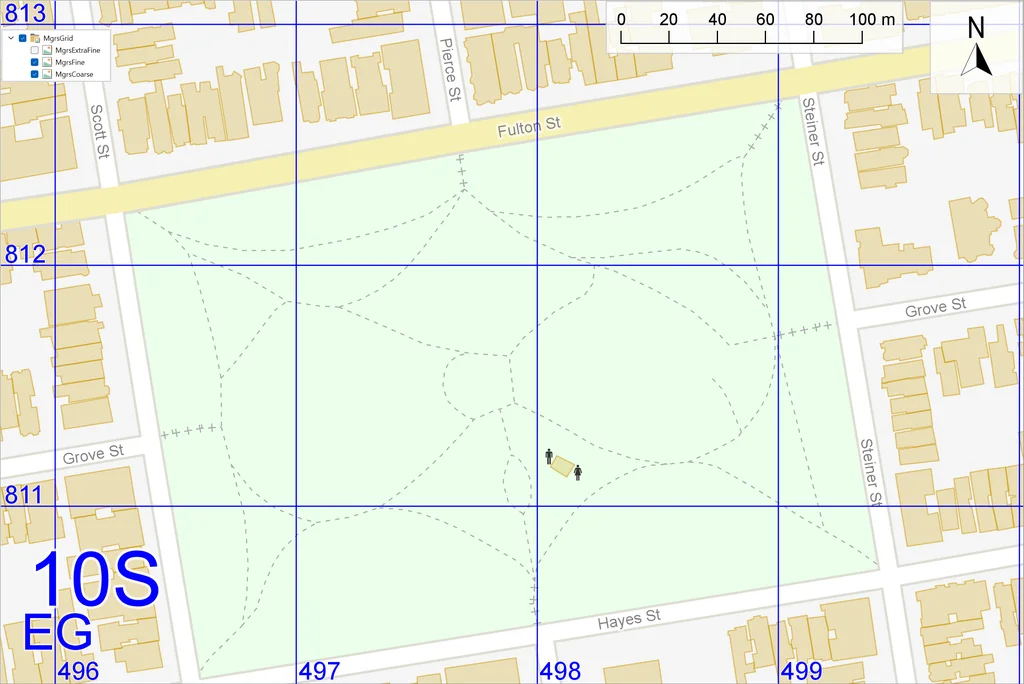
and one can see that the restrooms are in the square 10S EG 498 811 (usually written without spaces).
If we instead use 10 m resolution, the MGRS grid looks like this:
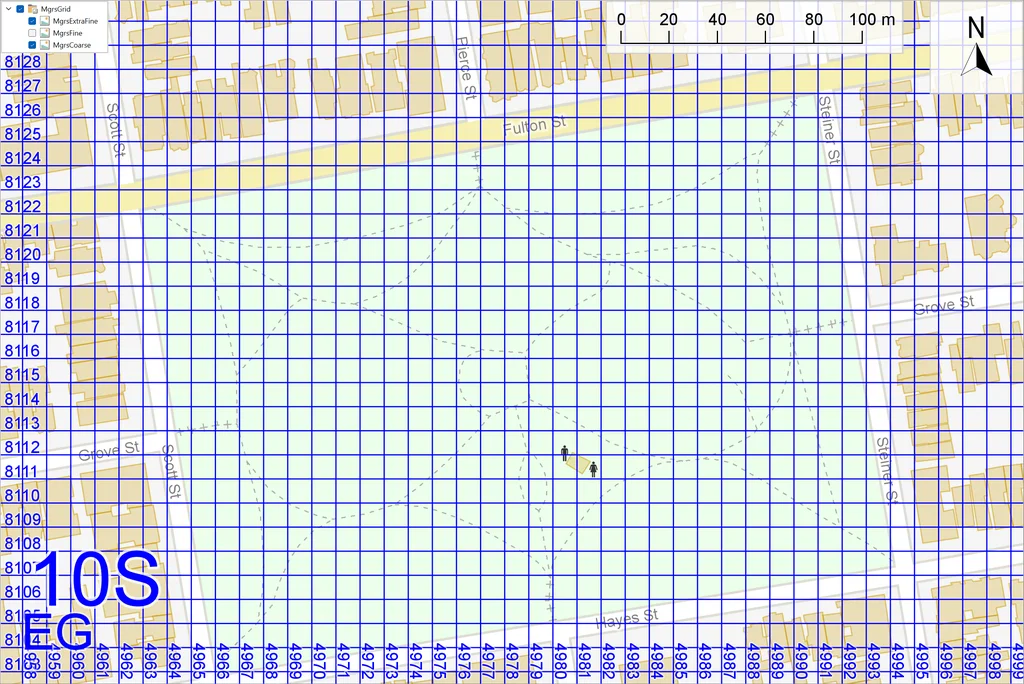
and one can see that the women’s restroom is in square 10S EG 4981 8111.
The screenshots illustrate a drawback of MGRS: for some purposes, the 100 m resolution can be too coarse while the 10 m resolution is too fine.
Instead of using MGRS, let us design our own geocoded grid, where we can assign labels to 50 meter squares.
Basic guidelines
TileLayer.GridGenerator that we will use, we set valueAttributeFormat = Double, because numeric value attributes are easier to manipulate in Expressions than strings would be.lineDistanceX and lineDistanceY must either use their default settings or be scale-dependent attribute variables; for examples, see the layers MgrsExtraFine and MgrsFine in the example configuration.)To generate a meter-based grid, we need a projected CRS for our GridGenerator; that is, the CRS should use some map projection instead of LongLat. A basic question is whether we want to use an equal-area map projection where areas are true to scale, for example an AzimuthalEqualAreaProjection, or a conformal map projection where angles are preserved, for example a TransverseMercatorProjection. But since we only want to cover a tiny park, this choice is not important: the differences between these two projection types will be negligible as long as both are centered in the park. Let us use a Transverse Mercator projection.
To center the projection in the park, we can let our Transverse Mercator projection have centralLatitude = 37.77633° and centralLongitude = −122.43467°. With a 50 m resolution and simple text visualizers for the grid lines, we get a local grid like this:
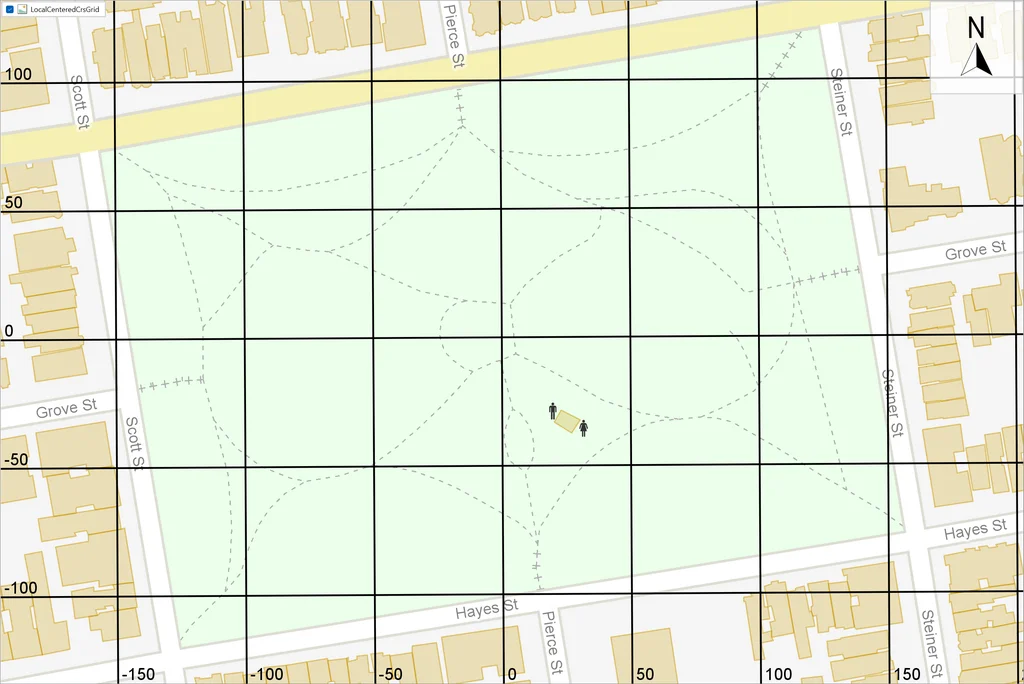
But cartographers like to avoid negative coordinates since people can mistake a minus sign for a dash, and there are also situations where Expressions in Carmenta Engine work smoother with only positive coordinates, for example if the remainder operator % is used. We can offset the grid via two other Transverse Mercator properties: let falseEasting = 126 meters and falseNorthing = 121 meters. The names of these offset properties are strange but established; their values will be added to all eastings and northings, respectively, so the projection center in the middle of the park will now get an easting of 126 m and a northing of 121 m. These offset values were chosen because they give the southwest corner of the park a zero easting and a zero northing:
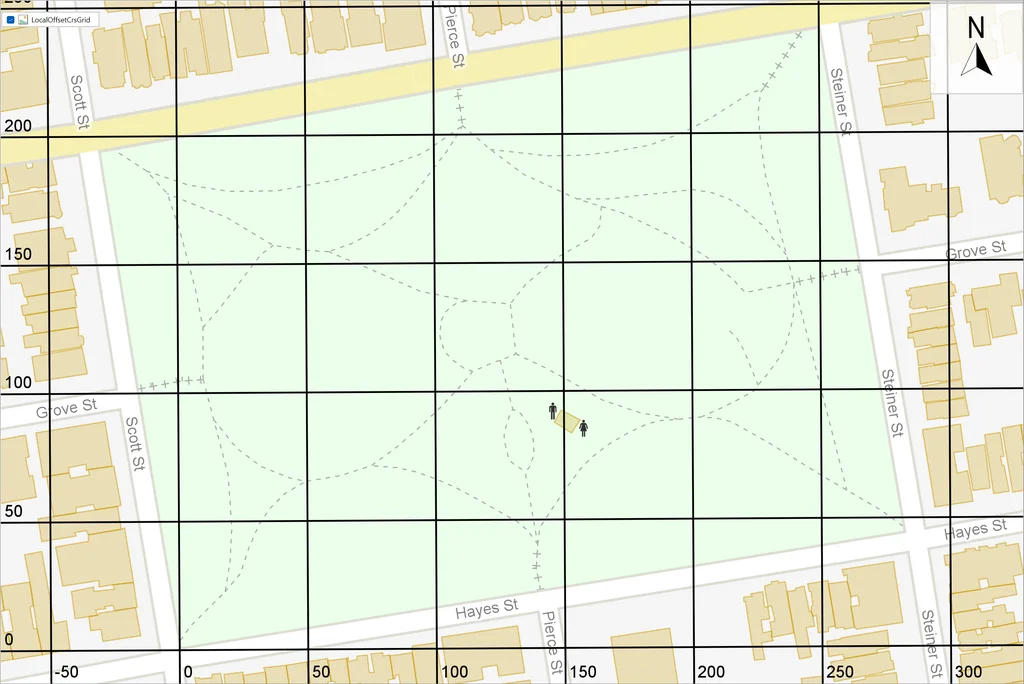
Note that the northmost horizontal grid line is not quite parallel with the top edge of the map window. That is because in Transverse Mercator (and most other types of map projections), true north equals grid north only on the central meridian. Our tailor-made map projection is centered in the park, so in the park area it has a negligible difference between its grid north and the true north. But the screenshots have been made with a View CRS based on the projection for UTM Zone 10N, which has its central longitude about 49.8 km farther west at 123°W. At the latitude of San Francisco, that distance is enough to give the park a difference of 0.346° between true north and the grid north of UTM Zone 10N. So it is the map itself that is not perfectly aligned with true north.
You can also see that the northwest part of the park still has negative easting coordinates in our park grid. But the idea is to rotate the grid around its origin to align it with the “street north” direction in the Alamo Square neighborhood, which has a bearing of about 351° (clockwise from true north). There are no properties of the TransverseMercatorProjection class that can produce a rotation, but we can wrap our TransverseMercatorProjection instance in a RotatedProjection with center = [0.0, 0.0] and up = 351°. If we also add an appropriate bounds rectangle to the GridGenerator, we get a tightly fitting grid for the park:
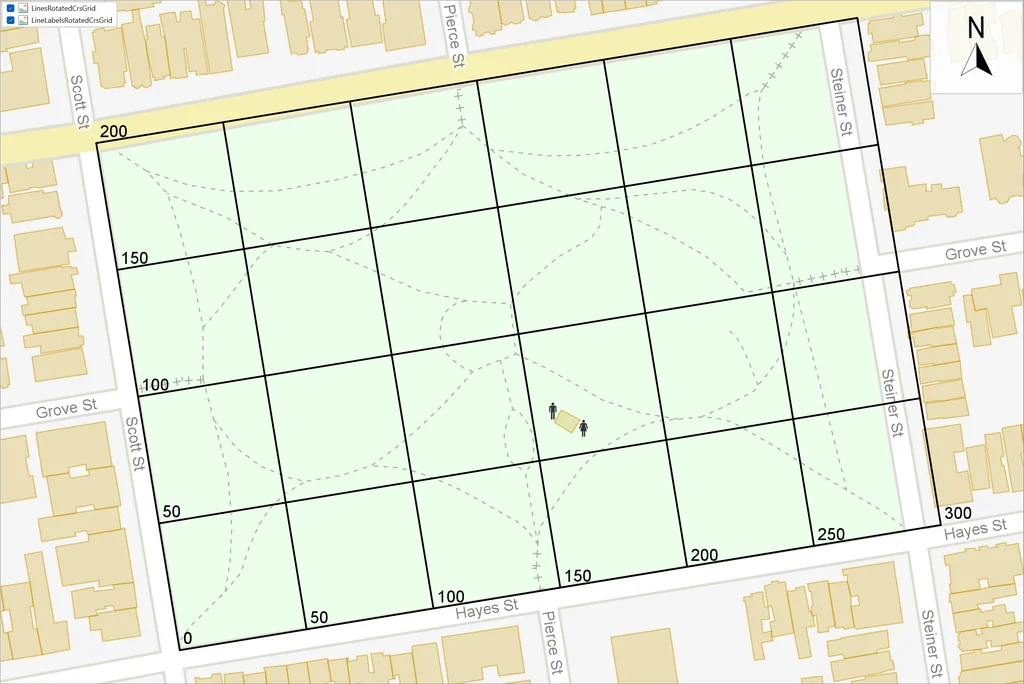
To simplify the next step, the visualization of this grid has been separated into two layers, the LinesRotatedCrsGrid that displays only the grid lines and the LineLabelsRotatedCrsGrid that displays only the grid line labels.
Now we can think about how to label our 50 meter squares. A basic method is simply to use the easting and northing values for the southwest square corner, so the square containing the restrooms would get the label (150, 50). Or if we force all coordinates to be three-digit via zero padding, we could use the more compact label 150050 for that square. In the Expression syntax, zero padding can be done via the format specifier d.
We can get even shorter labels by naming the columns a, b, c, d, e, f and the rows 0, 1, 2, 3; then the restroom square label would become d1. But generating these labels is not trivial. The label visualizations must be associated by some features of the grid, but the lines that are visible are not the appropriate features, since we want the labels to appear halfway between the lines. So, we can construct a separate layer with another GridGenerator that uses the same CRS and the same 50 m resolution for lineDistanceX and lineDistanceY, but also uses an offsetX and offsetY of 25 meters, which will produce grid lines whose value attributes will be 25, 75, 125, etc. In this layer, we do not visualize the lines, only the labels. But how do we construct Expressions for the labels?
Let us try to formulate the Expression problem more generally. We can specify a row index problem and a column index problem, but they are similar so we will only formulate the first one.
The row index problem. Let dy be the value of
lineDistanceY, and let yMin and yMax be the minimal and maximal possible y value (northing or latitude) of any horizontal grid line. (The possible range of the y values in the grid may be constrained by theGridGenerator.boundsin general, or just by the poles for latitudes.)
Write an Expression that, for any y value such that yMin ≤ y < yMax, will produce the row index, starting from row 0 in the south and increasing to the northmost row index which is (yMax – yMin) / dy – 1. However, in edge cases where the y value is only slightly south of the boundary between two rows, we want to snap y northward and get the index of the row north of the boundary.
The northward snapping in the edge cases may seem strange, but one reason to do it is that dy is not necessarily an integer. For example, let us say the grid is based on longitude and latitude and dy is 1/3 degree. The number 1/3 cannot be represented exactly as an IEEE double-precision number, so the dy value that is stored is either slightly less or slightly greater than 1/3. The y values of the horizontal grid lines are formed by repeated additions and can therefore be slightly off from their theoretical values even if the theoretical value would be an integer. If the northward snapping were not used, y values that are slightly smaller than their theoretical values would cause off-by-one errors.
So, what threshold should be used for the snapping? We recommend using 0.0001 for a meter-based grid and 0.000000001 or 1e-9 for a degree-based grid. The snapping will then be limited to 0.1 mm for a meter-based grid and about 0.111 mm for a degree-based grid, which should be negligible in practical applications, but still much larger than any rounding errors caused by the finite precision of IEEE double numbers. Let us write the threshold as eps (for epsilon).
To solve the row problem, it seems clear that we should begin by calculating (y + eps – yMin) / dy. Then we would like to calculate the largest integer that is less than or equal to the result, and ideally we would use a floor function, but the Expression syntax is minimalistic and does not contain any floor. Instead we can use the int() function that converts a double to an integer, but this conversion will round to the nearest integer. To emulate floor, we must therefore subtract 0.5 before calling int(). The documentation of Expressions does not specify in which direction int() will round a number that is exactly halfway between two integers, but we can ignore that ambiguity thanks to the use of eps.
The row index solution. An expression giving the zero-based row index can be written as
int((y + eps - yMin) / dy - 0.5)In a concrete setting eps, yMin and dy shall be replaced by numeric constants. In fact, the constant subexpression eps − yMin can be evaluated and replaced by a single numeric constant. On the other hand, y shall be replaced by an attribute name or a coordinate function, depending on the kind of feature that the TextVisualizer is applied to:
- If the
TextVisualizeris applied to a grid line, y shall be replaced by the attribute namevalue,- if applied to a grid rectangle (more about them later), y shall be replaced by the attribute name
bottom, and- if applied to a point feature expressed in the grid CRS, y shall be replaced by the coordinate function
y().
We can now return to our park example, where we have dy = 50 m, yMin = 0 m and yMax = 200 m, and since the grid is meter-based, we use eps = 0.0001. The horizontal lines will have y values of 25, 75, 125, etc., stored in an attribute named value. So the expression for the row index becomes
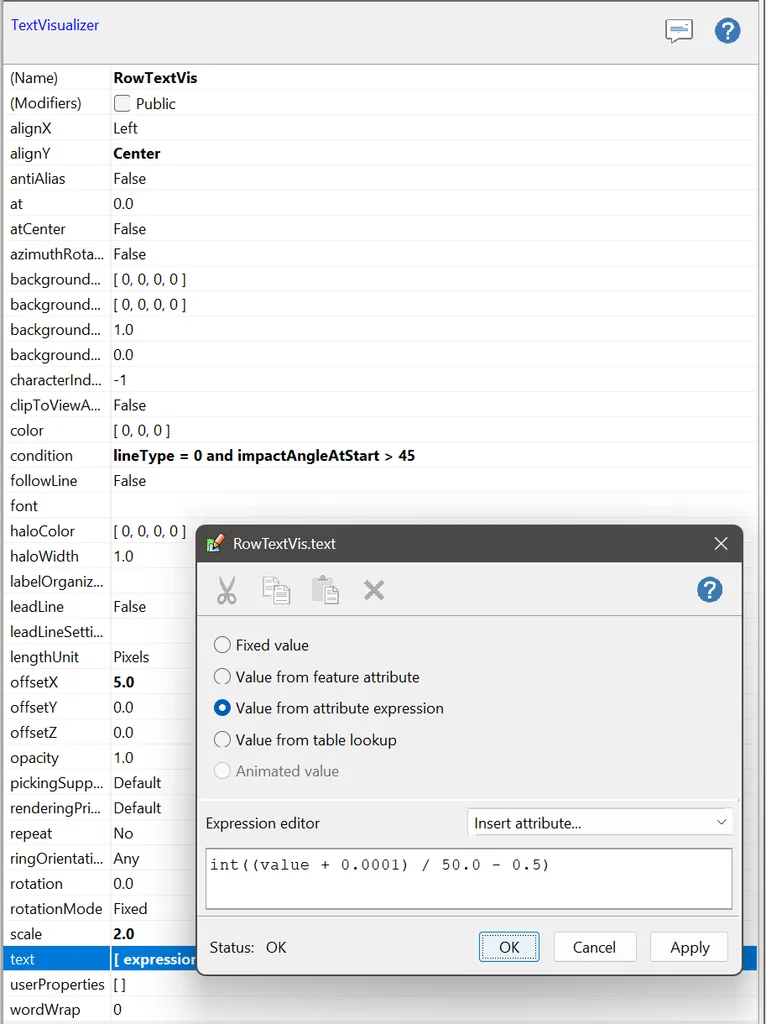
int((value + 0.0001) / 50.0 - 0.5)
To ensure that this expression is applied only to the horizontal grid lines, the TextVisualizer should have a condition
lineType = 0 and impactAngleAtStart > 45
because horizontal lines have lineType = 0 while vertical lines have lineType = 1. (The purpose of impactAngleAtStart is described in the documentation of GridGenerator.) In Carmenta Studio, the TextVisualizer can look like this if the text field has been opened for editing:
Okay, but what about the column index? In our park example, dx equals dy and xMin equals yMin, so we can in fact copy the Expression for the row index and use it to get the column index, if we use it in a TextVisualizer that is applied only to the vertical grid lines. That is fine, but remember that we want to give the columns alphabetic labels a, b, c, … instead of numbers. To convert the column numbers to letters, we can use a substring-producing function in the Expression syntax that takes three arguments: a main string, a zero-based index into the main string that gives the start of the substring, and the length of the substring. So we can write:
substr("abcdef",
       int((value + 0.0001) / 50.0 - 0.5),
       1)
We can now generate a labeled grid like this:
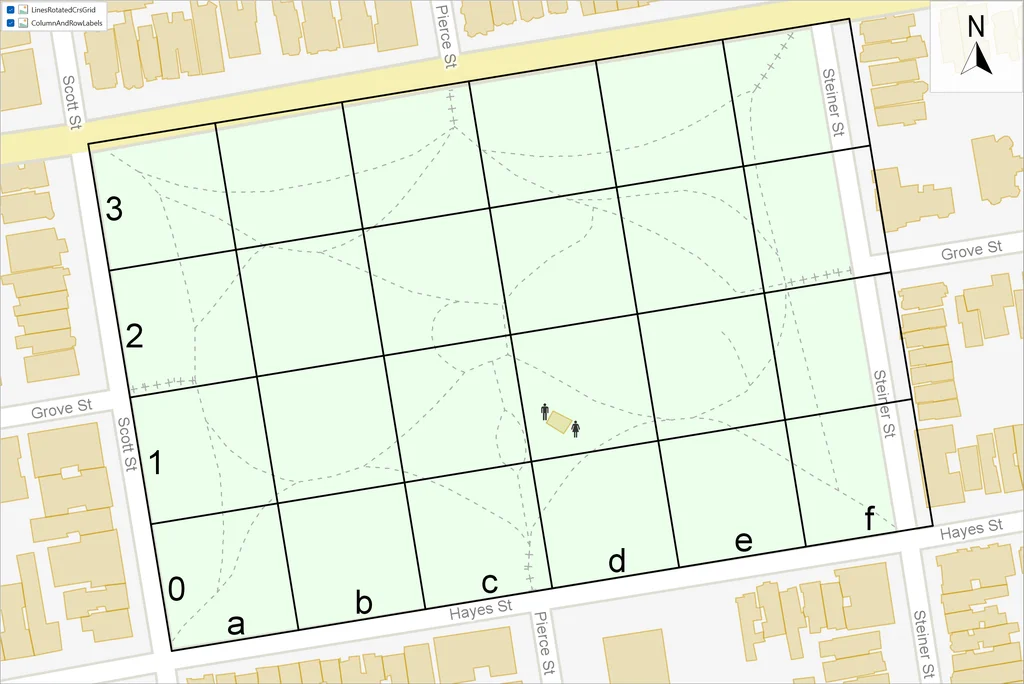
And we can see that the restrooms are in square d1.
There is one limitation of the text visualizers we have used for these labels, and also for the numeric line labels of the previous screenshot. They have constant values for their properties alignX, alignY, offsetX and offsetY that assume that a horizontal grid line (which will go eastward) will start either in the interior of the map window or from its left edge, and that a vertical grid line (which will go northward) will start either in the interior or from the bottom edge. That assumption will be true for most grid lines if the screen up direction does not differ much from the grid north direction, and in our example, they differ only by about 9°. But the assumption is false in an application that uses a moving map with heading up (screen up is the current heading of a vehicle), so the labels may fail to appear if the vehicle is heading southward. To fix this, one could let alignX, alignY, offsetX and offsetY be attribute variables that depend on the startType attribute of the grid line, whose value can be one of five Atoms: #left, #right, #top, #bottom or #interior. For testing, one can use Carmenta Explorer and its Moving Map Tool: the button with a triple arrow. But we shall not explore moving maps further in this article.
It can be debated whether it is good to place the column and row labels in the margins. The design has the benefit of minimizing the “ink” used for labels as Edward Tufte would recommend, but a drawback is that one has to look in two places to figure out the label for a square (and the two places can be far from the square if the map window is large). One must also remember the convention that the letter shall come before the number. A third drawback occurs if one zooms in very much: then the View area may fail to intersect any of the invisible grid lines that carry the row and column labels, so that the labels will fail to appear.
An alternative design may be better at least in zoomed-in scales: place a complete label, a bigram, in each square. This requires that the squares are represented by polygon features, which we can get from our GridGenerator by letting rectangles = True. We will also revert to using zero for the offsetX and offsetY. Such a rectangle feature will get two attributes left and bottom with values from the grid lines along the left and bottom edges. For example, in our park grid, the square d1 will get left = 150.0 and bottom = 50.0. It is now possible to make a combined Expression that produces a complete label like d1. We have already seen two Expressions that produce the row label and the column label, so in the combined Expression we replace value by left in the column part, and replace value by bottom in the row part. The attributes of the generated grid features will differ from the previous example in that the values of left and bottom will be multiples of 50, instead of the offset values of 25, 75, 125, etc. for the invisible grid lines used earlier. But the difference in offsets will not require further modifications of the Expressions, thanks to the careful formulation of the row problem above (and the analogous column problem).
A minor problem is that the Expression syntax cannot directly concatenate the string from the column expression with the integer from the row expression. First we need to convert the integer to a string, using the string() function, and then we can concatenate the two strings with the + operator. That is, the TextVisualizer.text for the grid rectangles can use the following combined Expression:
substr("abcdef",
       int((left + 0.0001) / 50.0 - 0.5),
       1) +
string(int((bottom + 0.0001) / 50.0 - 0.5))
The simplest design for the other parts of the text visualizer should be to use alignX = Middle, alignY = Center and atCenter = True, with default settings for the remaining properties. Since the offsetX and offsetY of the GridGenerator are now zero again, we will also use a LineVisualizer in this layer, so the separate layer LinesRotatedCrsGrid is no longer needed. The LineVisualizer has a condition geoType = #line to avoid also drawing lines along the outlines of the rectangular polygon features (duplicated line drawing is mostly harmless if the line style is solid, but unnecessary). We get the following look:
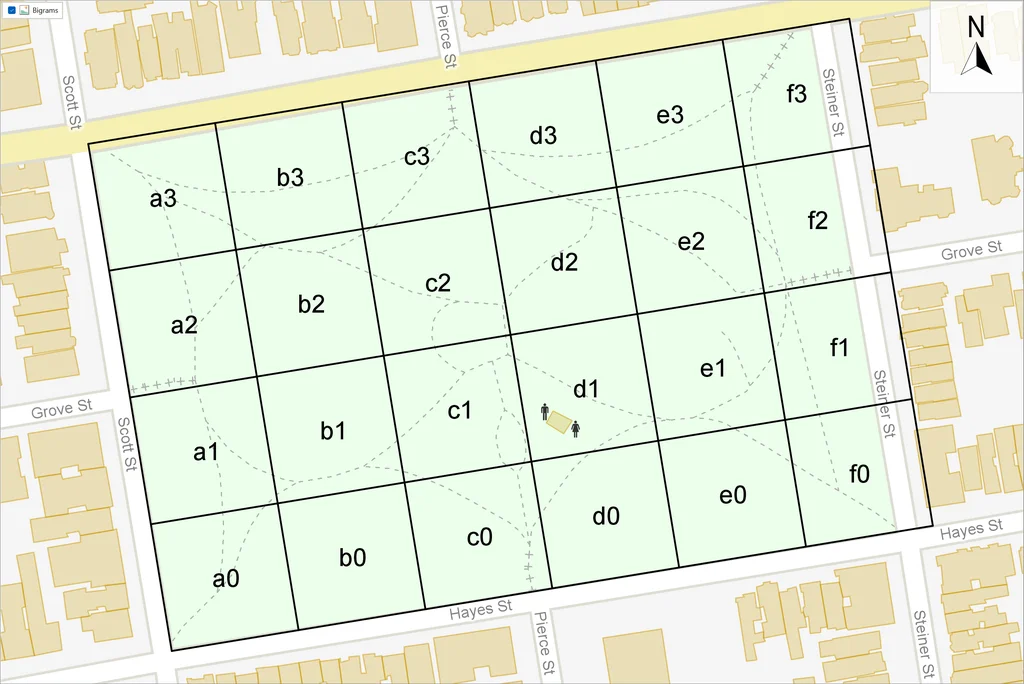
One can improve this design by giving the TextVisualizer a clipToViewArea = True, which will work better when zoomed in. But we will first design an alternative geocoding scheme for the park, and then show how clipToViewArea works for that scheme.
The idea for the alternative geocoding scheme is that we do not really need two characters for each label. There are only 24 squares, so Edward Tufte might suggest reducing the “ink” by using only a single letter for each square; in other words, let us use unigrams instead of bigrams. We can use the capital letters from A to Z, and we can afford to omit I and O which can be mistaken for the digits one and zero. This time, let us label the squares row by row from north to south.
To do this, we need to modify the Expression. To start with, we must replace the alphabet string, and we must calculate a single index into the alphabet from the left and bottom values. But we have already designed two subexpressions for the row index, call it r, and the column index, call it c. By design, the r increases northward starting from zero for the bottom row, but now we have better use for a row index that increases southward starting from zero for the top row, and this is simply 3 − r since the row indexes go from 0 to 3. The main index into the alphabet can now be written as c + 6 * (3 − r) since there are 6 columns, and if we replace the c and r by the subexpressions they represent, we get the following main expression for our TextVisualizer.text:
substr("ABCDEFGHJKLMNPQRSTUVWXYZ",
       int((left + 0.0001) / 50.0) + 6 * (3 - int((bottom + 0.0001) / 50.0)),
       1)
The result looks like this, with the restrooms in square R:
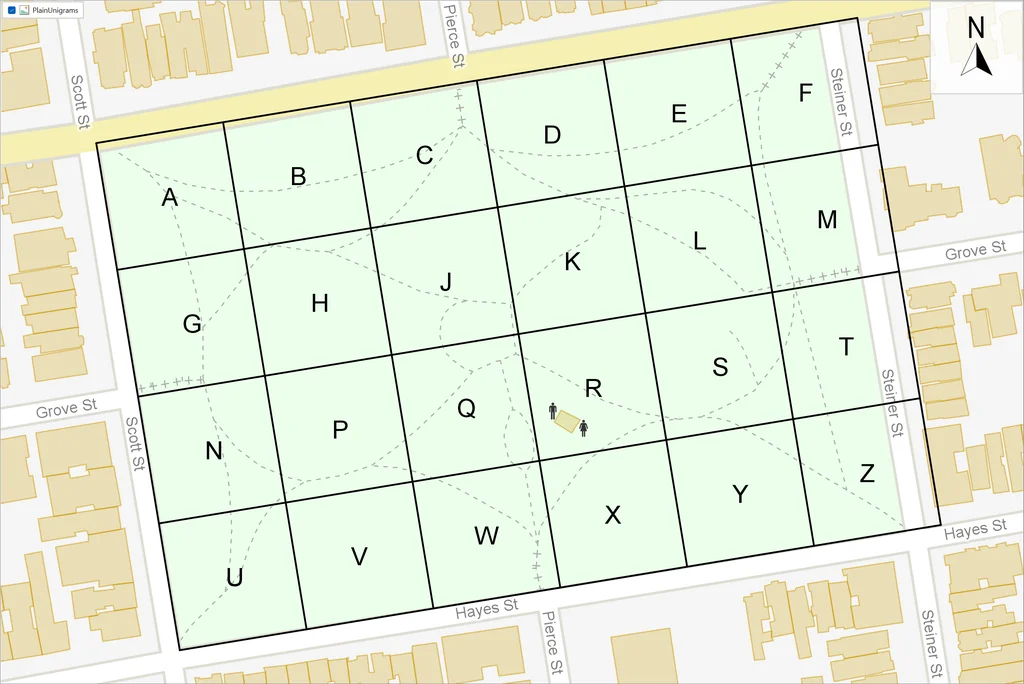
We have halved the amount of ink for the square labels. But a drawback of the unigrams is that they do not allow the alternative visualization where separate column labels and row labels are placed along the map window margins.
Some more testing will also reveal that the behavior of this TextVisualizer (and the previous one for bigrams) is too inflexible if we need to zoom in a lot. Grid lines are automatically clipped to the View area by a GridGenerator, but grid rectangles are not, so the labels will remain at the center of each complete square even if the center is outside the View area. And with enough zoom-in, the square labels will fail to appear:
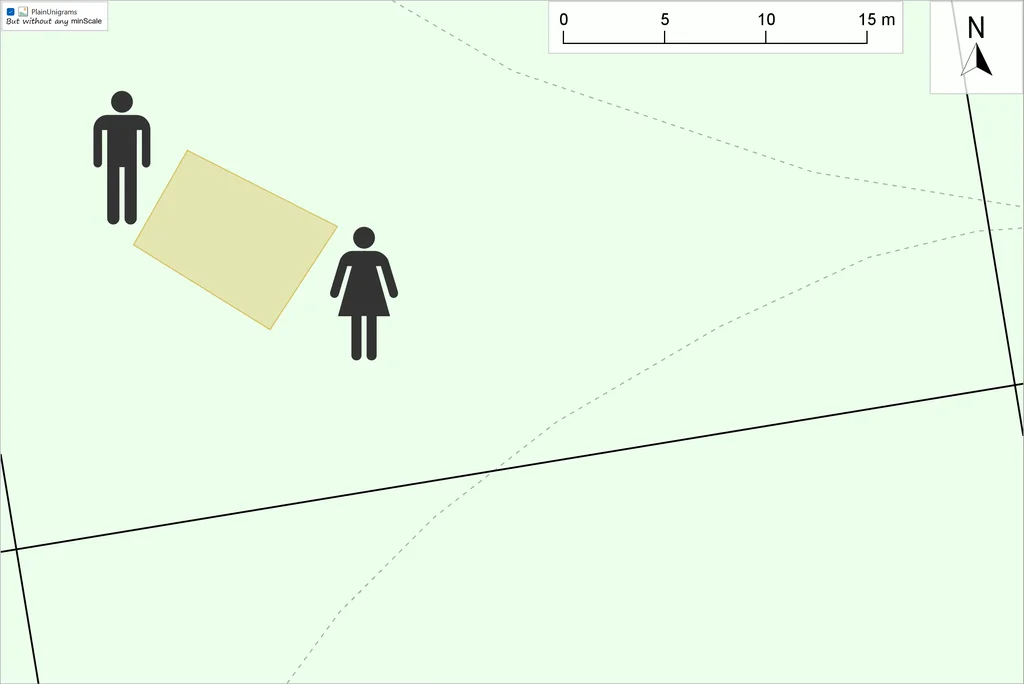
(If you want to reproduce this screenshot with the example configuration, you must use Carmenta Studio to remove the minScale from the PlainUnigrams layer, and then reload the configuration in Carmenta Explorer and enable PlainUnigrams and disable ClippedUnigrams.)
To ensure that labels appear also in zoomed-in scales, we should set TextVisualizer.clipToViewArea = True, which would place the labels at the center of the visible area of each square:
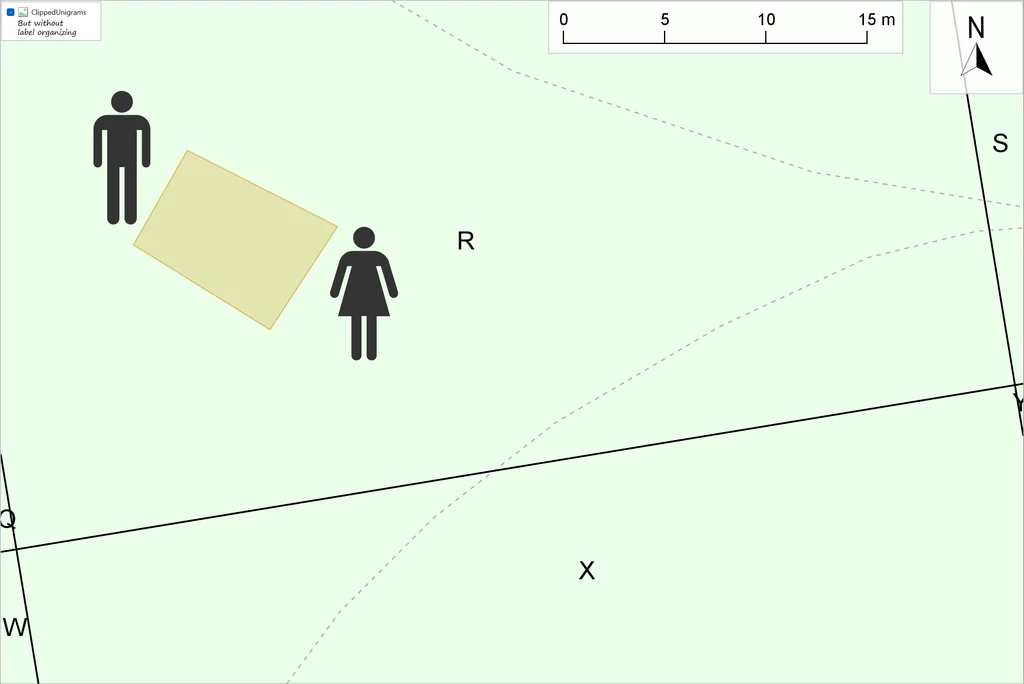
(If you want to reproduce this screenshot with the example configuration, you must use Carmenta Studio to set LabelOrganizedUnigrams.organize = False and reload in Carmenta Explorer.)
But in this screenshot we see too many labels: at the left and right edges there are Q and Y labels that do not fit inside the tiny slivers that remain of their squares. To reduce clutter, it is better to suppress such non-fitting labels, which we can do by attaching an instance of LabelOrganizingSettings to the TextVisualizer. In these settings, the count, dx and dy shall all be zero and removeNonFitting shall be True, but the other remove-something properties can be False:
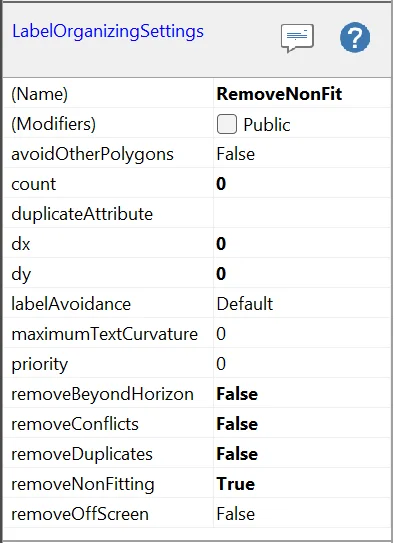
To make these settings have any effect, we must also place the OrdinaryLayer under a LabelOrganizingLayer. In the example configuration, we have chosen to use a separate LabelOrganizingLayer for the unigrams, so there is no interaction with the label-organized street labels.
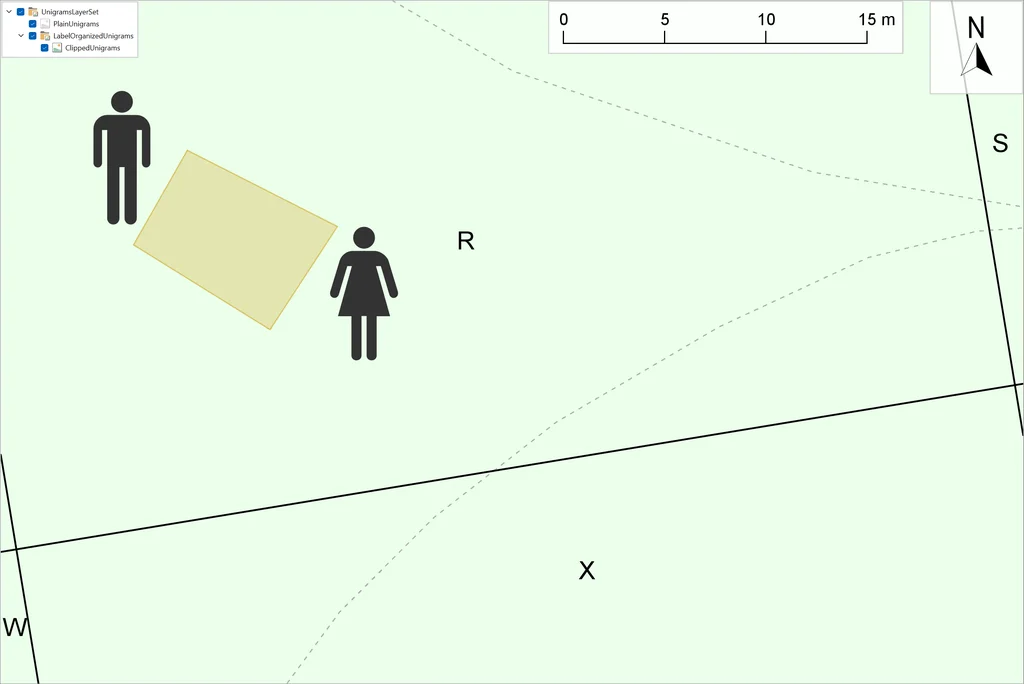
With these improvements, non-fitting labels like Q and Y will be suppressed:
On the other hand, clipping and label organizing require more computation. They are also unnecessary in zoomed-out scales where many complete grid squares are visible, because then it should not matter if a few grid squares along the margins get their labels outside the View area. As a compromise, the example configuration uses the plain visualization in zoomed-out scales and the clipped and label-organized visualization in zoomed-in scales. In Carmenta Studio, the unigram layers look like this:
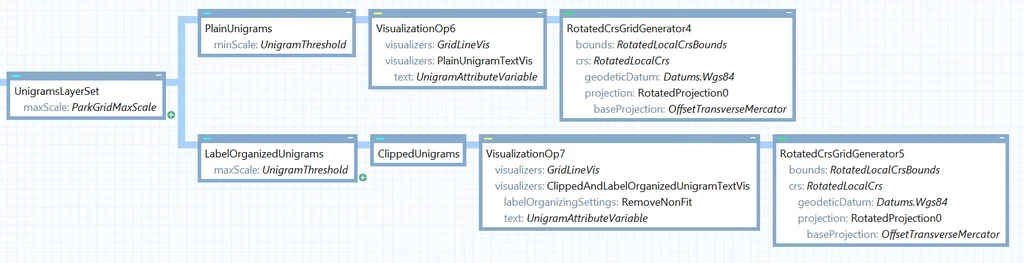
The UnigramThreshold is a named Double with the value 500.0, and is used as the minScale for the PlainUnigrams layer and as the maxScale for the LabelOrganizedUnigrams layer. This means that the PlainUnigrams layer is active when the map scale is more zoomed out than 1 : 500 and the LabelOrganizedUnigrams layer is active otherwise. The PlainUnigramTextVis has clipToViewArea = False, while the ClippedAndLabelOrganizedUnigramTextVis has clipToViewArea = True and also the RemoveNonFit label-organizing settings.
The park grid examples used only one resolution level, and this section will give some general tips on how to handle multiple levels.
Most of the standard geocoding schemes allow a choice between several resolution levels, although the variation is large:
To implement a geocoded grid with multiple resolution levels, you should normally use one layer for each level. The long geocode for a high-resolution rectangle will typically start with the short geocode for the low-resolution rectangle that covers it, so there are opportunities to share or reuse Expressions between different layers. To exploit these opportunities, avoid using text visualizers with self-sufficient Expressions that depend only on the grid feature attributes, as we did in the simpler park examples. Instead, let your operator chain contain AttributeOperator instances that use simpler Expressions to calculate partial results that are stored as the values of new grid feature attributes. For example, if a first (rightmost in Carmenta Studio) AttributeOperator calculates row and column indexes as in the park examples, and a second AttributeOperator converts the indexes to row and column labels, then a text visualizer for a bigram can use an Expression that just concatenates the two new label attributes. Such a modular design is useful during prototyping since you can use temporary text visualizers to display and verify the partial results. It is also useful for sharing between layers, since attribute operators in different layers can refer to the same AttributeAssignment.
At each resolution level except the coarsest one, you must usually design Expressions that give the local row and column indexes for a subrectangle, counting from the southwest corner of its enclosing main rectangle. The Expression templates for global row and column indexes, given in the park examples, can be adapted to produce such local indexes by using the remainder or modulo operator % in the Expression syntax. The first argument would then be the global row or column index for the subrectangle, while the second argument would be the linear resolution ratio: the ratio between the width (or height) of a main rectangle and the width (or height) of a subrectangle. To ensure that the result from the % operator is non-negative as usually desired, make sure that the first argument is never negative.
The ideas in this article can help you implement your own geocoded grids, either for your own geocode scheme or for a standard scheme like the ones listed in the introduction.
For geocode schemes in a style similar to Open Location Code, that is, with many resolution levels and a mixture of letters and digits for geocodes, it may not be all that useful to visualize the geocodes for all rectangles in the map window. Because if you try to find one geocode on the map and you see only other geocodes, it can be difficult to understand in which direction you should pan the map. For such a scheme, a GIS user may instead prefer having a search field with a “zoom to geocode” button, and a separate status bar showing the geocode for the current cursor position.
It can still be useful to construct the full geocode visualization in a prototype of your application, because it can at least be used during testing, and Expressions that are used to format geocodes for the full visualization can be reused to format the geocode for the status bar. A “zoom to geocode” button would need to parse the geocode, which we have not discussed in this article. But as a general approach to testing parsing and formatting, we recommend testing that formatting followed by parsing will return the original position (within a tolerance due to the geocode resolution). This kind of testing will of course not detect errors that are present consistently in both parsing and formatting, but it may detect other errors. It is tempting to do such tests only on a few manually chosen positions, but it can be better to test it on millions of randomly generated positions: in this way, you may be able to spot errors in some rare edge cases that you did not suspect.
Finally: remember that if a standard geocode scheme can be downloaded as a dataset, this can be the easiest way to implement it, although implementing it with a GridGenerator can sometimes allow more options for the visualization. And beware of the Grid System for Atlas Florae Europaeae. It is a variant of UTM and MGRS where most of the geocoded areas have a resolution of 50 by 50 km, but to avoid too narrow areas adjacent to a UTM zone boundary, such areas are merged with their neighbors. In theory, it may be possible to start from Carmenta’s UtmGridGenerator and then implement the merging by postprocessing, but the merging rules are complicated. So if you need to map vascular plants in Europe, you should definitely download this grid system as a dataset.
A practical guide to Carmenta Engine's visibility operators: viewsheds, target line of sight, observer siting, and multi-sensor coverage.
View Post